

Connect an Exoscale account
Connect your Exoscale account to Microtica so it can provision and manage infrastructure for you, authenticating with an API key and secret you create.
Microtica provisions infrastructure directly on your Exoscale account. Connect the account once and give Microtica the API credentials it needs to manage your cloud resources.
Microtica authenticates with an API key and API secret that you create in the Exoscale console with the right role permissions.
Prerequisites
Before you connect the account in Microtica, generate API credentials in Exoscale:
- Log in to the Exoscale Console.
- Go to IAM > KEYS.
- Click ADD and assign the role permissions Microtica needs to manage your infrastructure.
- Copy the generated Key and Secret — you need them in the next step.
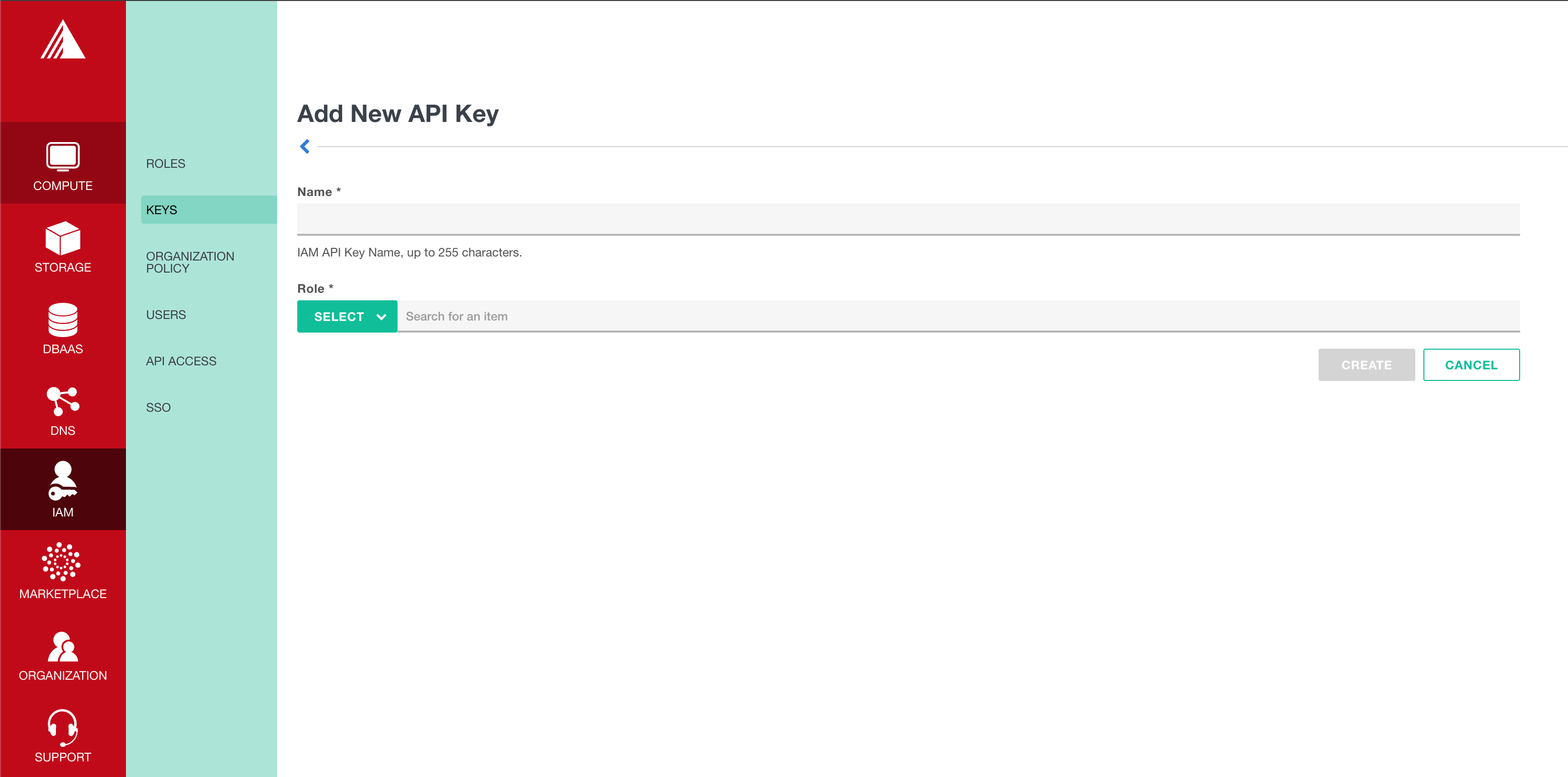
Least privilege
Follow the principle of least privilege: grant only the roles needed for the tasks Microtica performs.
Connect your Exoscale account in Microtica
- Open https://app.microtica.com.
- From the side menu, go to Integrations > Cloud Accounts.
- Click the Connect Exoscale account button.
- In the modal, fill in the following fields:
- Name — A user-friendly name for this account as it appears in the Microtica console.
- API Key — The API key you created in the Exoscale console.
- API Secret — The API secret associated with your API key.
- Click Connect.
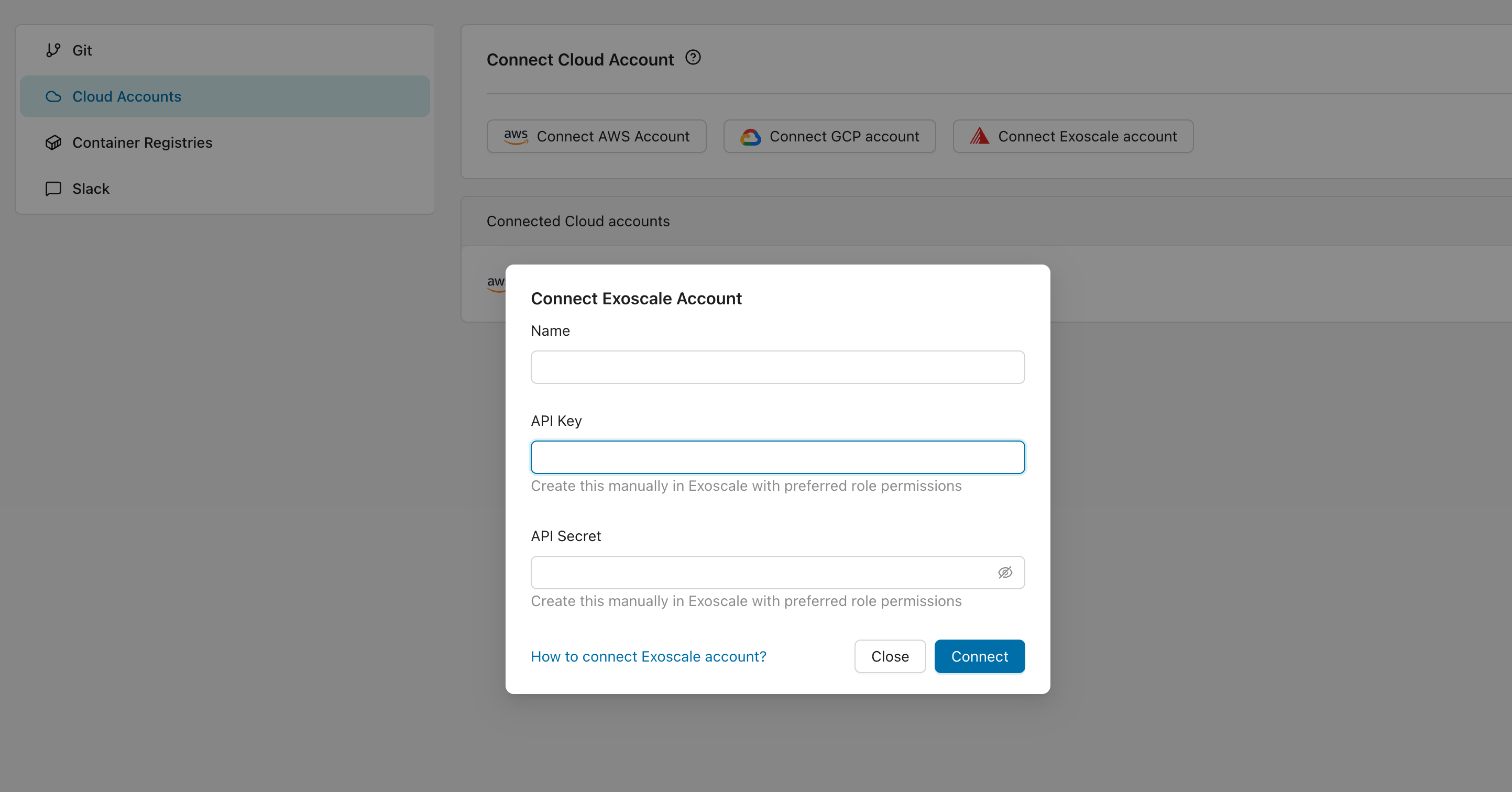
Once connected, your Exoscale account appears under Connected Cloud Accounts.
Revoke access
To remove Microtica's access to your Exoscale account, delete the API key from the Exoscale console. Microtica then loses all access to the account.
Next steps
Connect a GCP account
Connect your Google Cloud account to Microtica so it can provision and manage infrastructure for you by impersonating a service account you create.
Connect an existing Kubernetes cluster
Connect a Kubernetes cluster running on any cloud provider or on-premise to Microtica, and deploy to it with the full Kubernetes automation you already use.