

Add custom variables
Add custom environment variables to your CloudFront ReactJS app by updating schema.json, the CloudFormation template, and the deployment logic on window.env.
This template ships with one predefined environment variable, BACKEND_ENDPOINT. Use it in the ReactJS application with window.env.BACKEND_ENDPOINT.
You can also add more custom environment variables. The steps below add a new variable called MyCustomVar.
-
Update the input properties in the ./.microtica/schema.json file by adding the new variable of type string.
.microtica/schema.json{ "properties": { "inputs": { ... "MyCustomVar": { "type": "string" } } }, } -
Update the CloudFormation template by adding the new variable as a parameter, then reference the parameter in the DeploymentCustom resource properties.
.microtica/index.json{ "Parameters": { ... "MyCustomVar": { "Type": "String" } }, "Resources": { ... "DeploymentCustom": { "Type": "AWS::CloudFormation::CustomResource", "Properties": { "MyCustomVar": { "Ref": "MyCustomVar" } } } } } -
Update the logic that provides the environment variable in your web application. This code stores a /env.js file that assigns all environment variables under
window.env. Use the new variable withwindow.env.MyCustomVar..microtica/functions/deployment/src/index.tsasync function uploadFiles(event: CloudFormationCustomResourceEvent): Promise<void> { ... await s3.upload({ Bucket: DestinationBucket, Key: path, Body: `window.env=${JSON.stringify({ BACKEND_ENDPOINT: event.ResourceProperties.BackendEndpoint, // New environment variable here MyCustomVar: event.ResourceProperties.MyCustomVar })}`, ContentType: mime.lookup(path) || null }).promise(); } -
Check that the /env.js file is imported in the public/index.html file.
public/index.html<html lang="en"> <head> <!-- Import environment variabes provided through Microtica Portal. Variables will be assigned on window.env E.g. window.env.BACKEND_ENDPOINT --> <script src="/env.js"></script> </head> </html> -
Commit and push your changes. An automated build and deploy starts. Once the deployment is done, go to the Website resource settings and enter the value of the new environment variable.
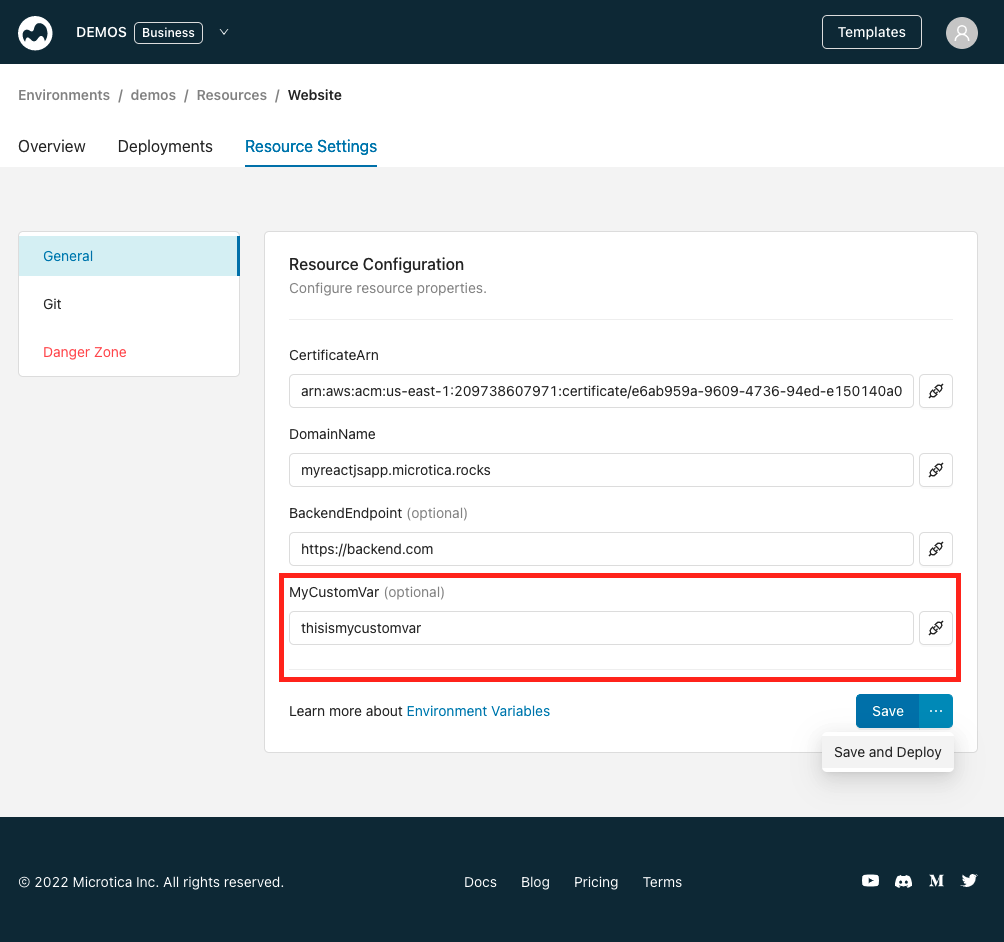
Repeat the same process for additional environment variables.
Next steps
Configure a custom domain
Serve your CloudFront single-page application from your own custom domain over HTTPS, instead of the auto-generated domain Microtica assigns by default.
Deploy Appwrite on AWS
Deploy a production-ready Appwrite backend server on your own AWS account with Microtica — VPC, EKS cluster, and load balancer provisioned for you.