

Deploy an existing Strapi app
Deploy your existing Strapi app on your own AWS account with Microtica — connect your Git repo, review the database config, and ship in minutes.
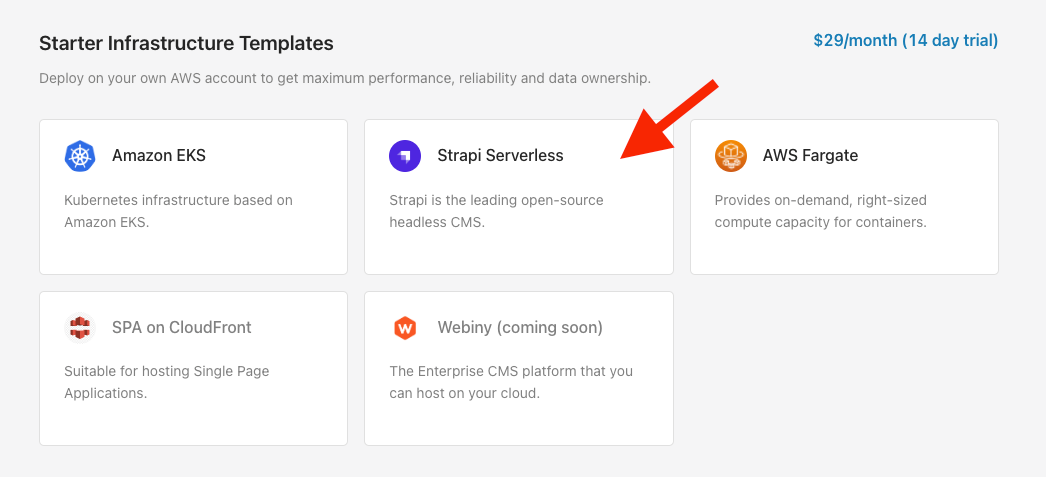
When you deploy infrastructure with the Strapi Serverless template, you can create a new Strapi application in your Git repository or select an existing Strapi application if you already have one.
Using Git for your Strapi projects makes moving content types between environments much easier, and deployments more predictable.

Review your database configuration
Before deploying the Strapi template, make sure your database configuration is correct. This matters because the template provides some predefined environment variables in the app runtime that you can use in the Strapi project.
Here is an example of a working database configuration:
module.exports = ({ env }) => {
  const connections = {
    sqlite: {
      connection: {
        client: 'sqlite',
        connection: {
          filename: env('DATABASE_FILENAME', '.tmp/data.db'),
        },
        useNullAsDefault: true,
      }
    },
    mysql: {
      connection: {
        client: 'mysql',
        connection: {
          host: env('DATABASE_HOST', 'localhost'),
          port: env.int('DATABASE_PORT', 3306),
          database: env('DATABASE_NAME', 'strapi'),
          user: env('DATABASE_USERNAME', 'strapi'),
          password: env('DATABASE_PASSWORD', 'strapi')
        },
        debug: false,
      }
    },
    postgres: {
      connection: {
        client: 'postgres',
        connection: {
          host: env('DATABASE_HOST', 'localhost'),
          port: env.int('DATABASE_PORT', 3306),
          database: env('DATABASE_NAME', 'strapi'),
          user: env('DATABASE_USERNAME', 'strapi'),
          password: env('DATABASE_PASSWORD', 'strapi'),
          ssl: { rejectUnauthorized: false }
        },
        debug: false,
      }
    }
  };

  return connections[env('DATABASE_CLIENT')];
};
Deploy your app using the Strapi Serverless template.
1. Import your Git repository
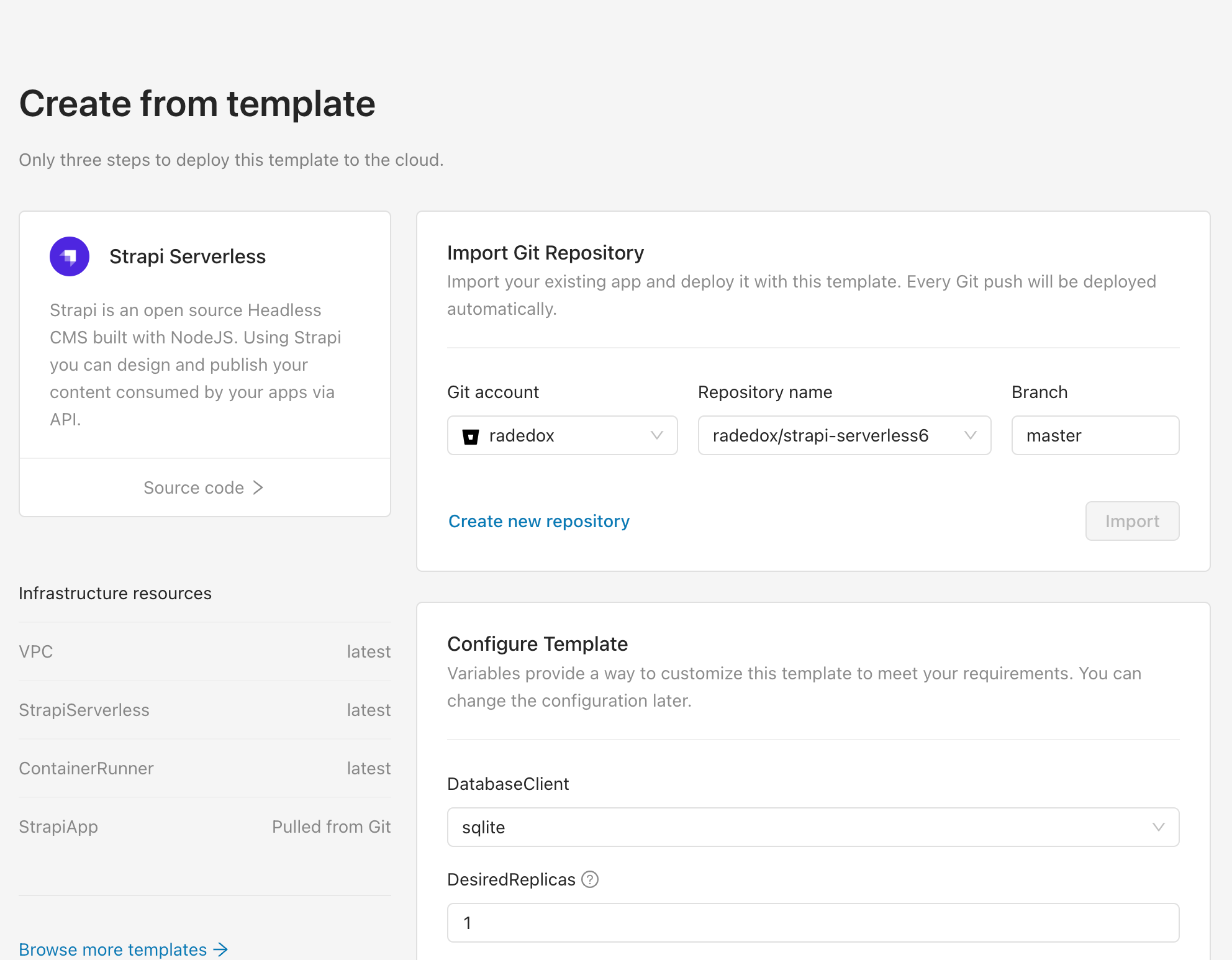
First, connect a Git account (GitHub, Bitbucket, or GitLab). If you already have a Git account connected to Microtica, choose it from the list. Select the repository with your existing project, click Import, and Microtica deploys every Git push automatically.
2. Configure the template
Next, configure the environment variables for this template. Variables let you customize the template to your needs.
For example, this is where you configure the scaling parameters for your Strapi app. You can scale vertically and horizontally. For vertical scaling, update the CPU and Memory configuration in this section. For horizontal scaling, update the number of desired replicas in the same section.
In this section you also choose the database client — sqlite is the default option.
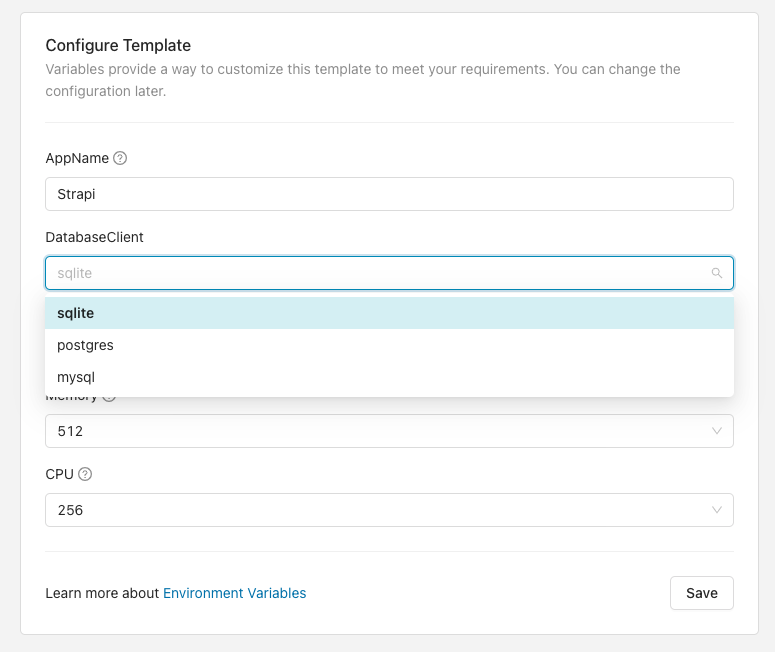
You can update the configuration later as well.
3. Configure the environment
After configuring the template, select an environment where the template will reside. Environments are a great way to separate your development and production applications. To create a new environment, enter its name and description and click the Select button. You can also choose an existing environment if you created one previously.
Next, configure the target AWS account where your Strapi infrastructure will be provisioned. Here is a quick guide on how to connect your AWS account.
4. Deploy
Once your AWS account is connected and configured in the environment, click the Deploy button to trigger the deployment.
It takes up to 10 minutes to create a live Strapi environment.
Follow the pipeline logs inline and monitor your deployment in real time.
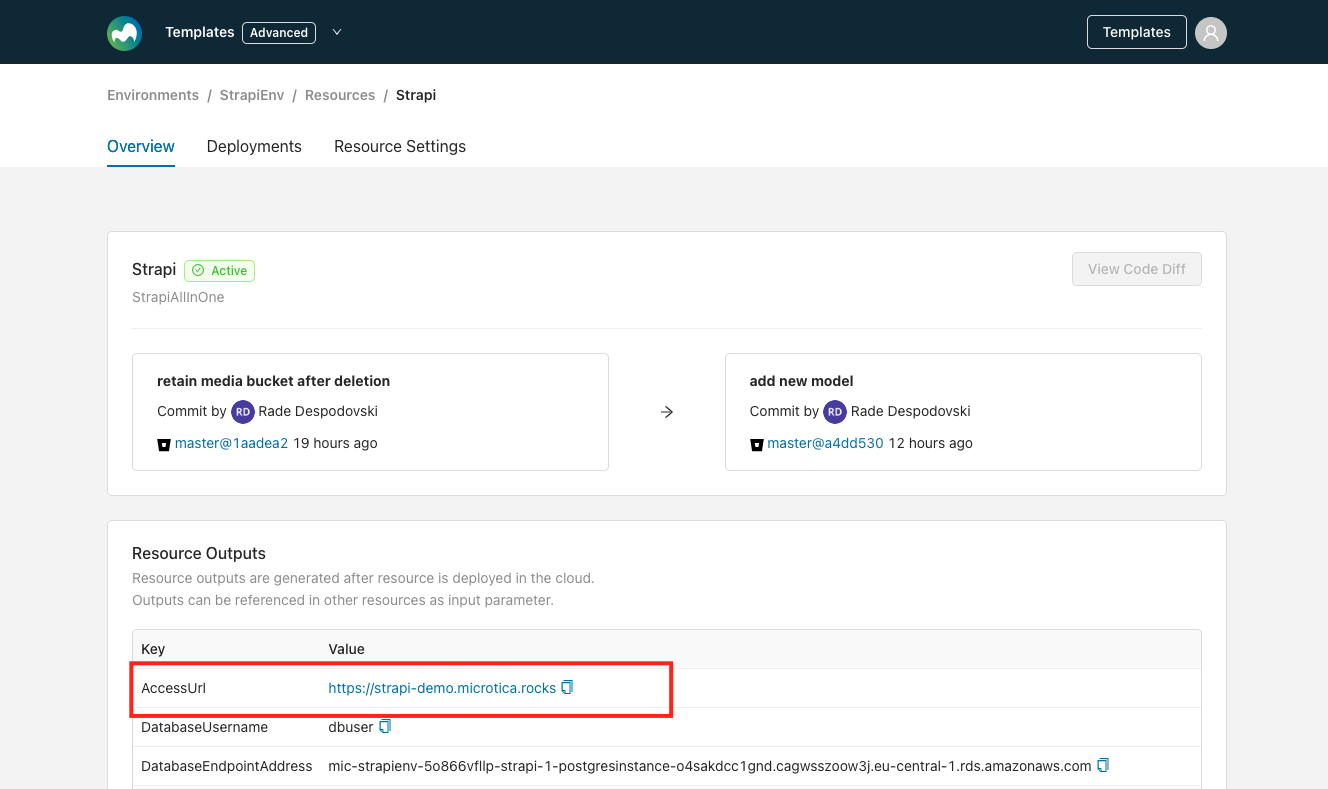
Once the template deployment finishes, find the access URL in Environment > Infrastructure > Strapi (Strapi is the AppName you provided in the template configuration step), under Resource outputs, in the AccessUrl parameter. Paste it into your browser to see your Strapi demo app.
Next steps
Deploy a new Strapi app
Deploy a new Strapi app on your own AWS account with Microtica in under 10 minutes — ready infrastructure built on GitOps and declarative deployments.
Configure a custom domain for Strapi
Serve your Strapi app over HTTPS on your own custom domain instead of the auto-generated HTTP address that Microtica assigns by default.