

Scaling
Scale your Microtica applications vertically and horizontally by configuring CPU, memory, and instance replication from the App Settings tab in the console.
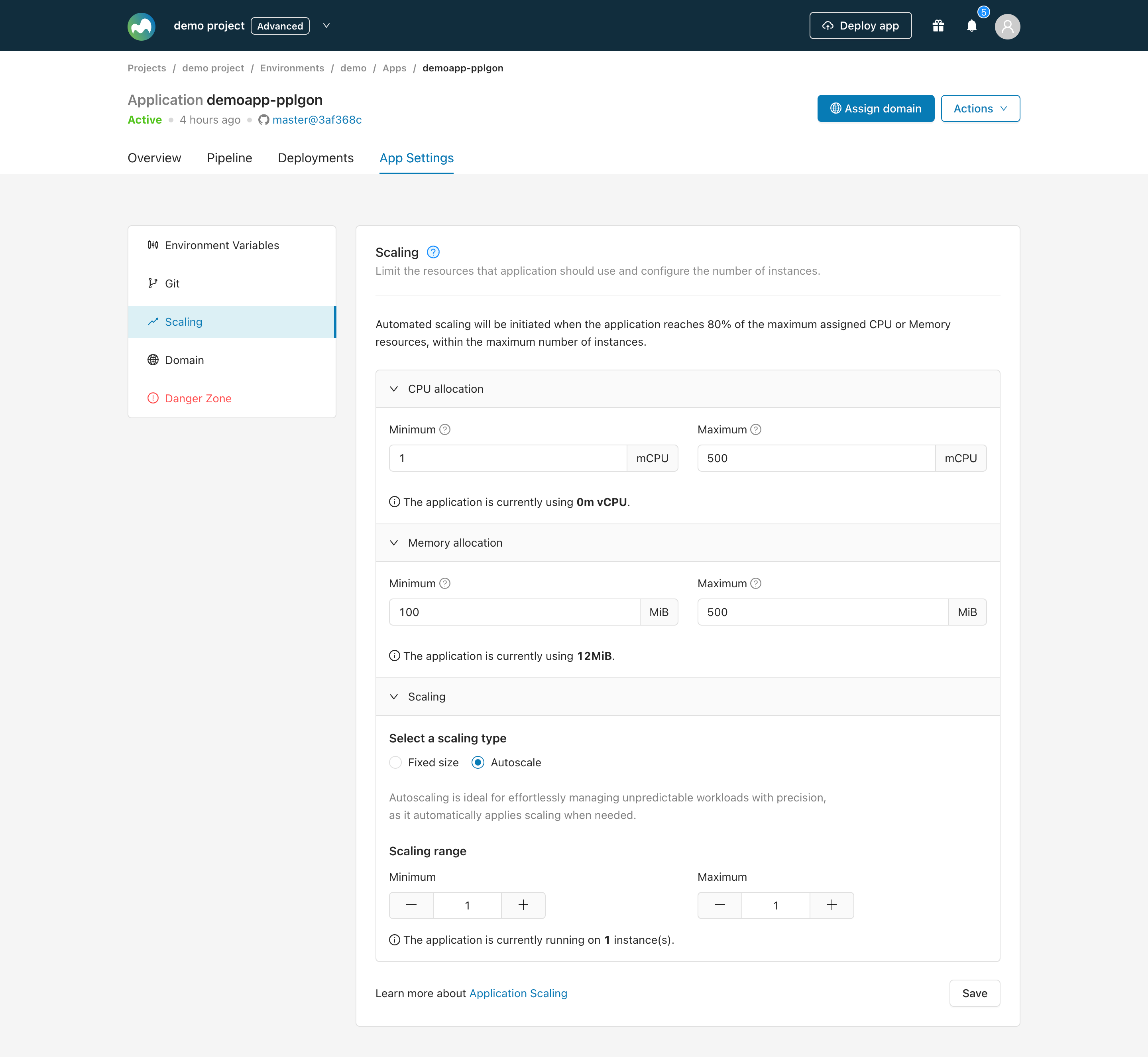
You can scale your applications vertically and horizontally from Microtica. Go to your environment, open the Apps tab, and select the application you want to scale. In the App Settings tab, under Scaling, you'll find every resource property you can configure: CPU, memory, and instance replication.
Vertical scaling
For CPU, enter the minimum and maximum number of CPU units reserved for the application (in mCPU). An indicator at the bottom shows how much CPU the application is currently using.
For memory, set the initial memory given to the application and the maximum allowed memory (in MiB). An indicator at the bottom shows how much memory the application is currently using.
Horizontal scaling
Configure the replication parameter, which sets how many application instances run at the same time. The workload is balanced across the instances. As with CPU and memory, set the minimum and maximum number of instances.
Automated scaling starts when the application reaches 80% of its maximum assigned CPU or memory, within the maximum number of instances.
Click Save to apply the configuration to your running environment. The scaling changes take a couple of minutes to take effect.
Next steps
Import an existing app
Connect your Git account to import existing application code into Microtica, prepare the repository, set up CI/CD pipelines, and deploy to AWS in minutes.
Assign a custom domain to an application
Expose a Kubernetes application to the internet in Microtica by assigning a free Microtica domain or your own custom domain, with SSL handled for you.