

Billing
Manage your Microtica plan and billing: start free with one project and environment, add unlimited users, then upgrade your plan for production workloads.
A free Microtica account lets you create one project with one environment, where you deploy ready-to-use application templates. You can add as many users as you want to your free and paid projects.
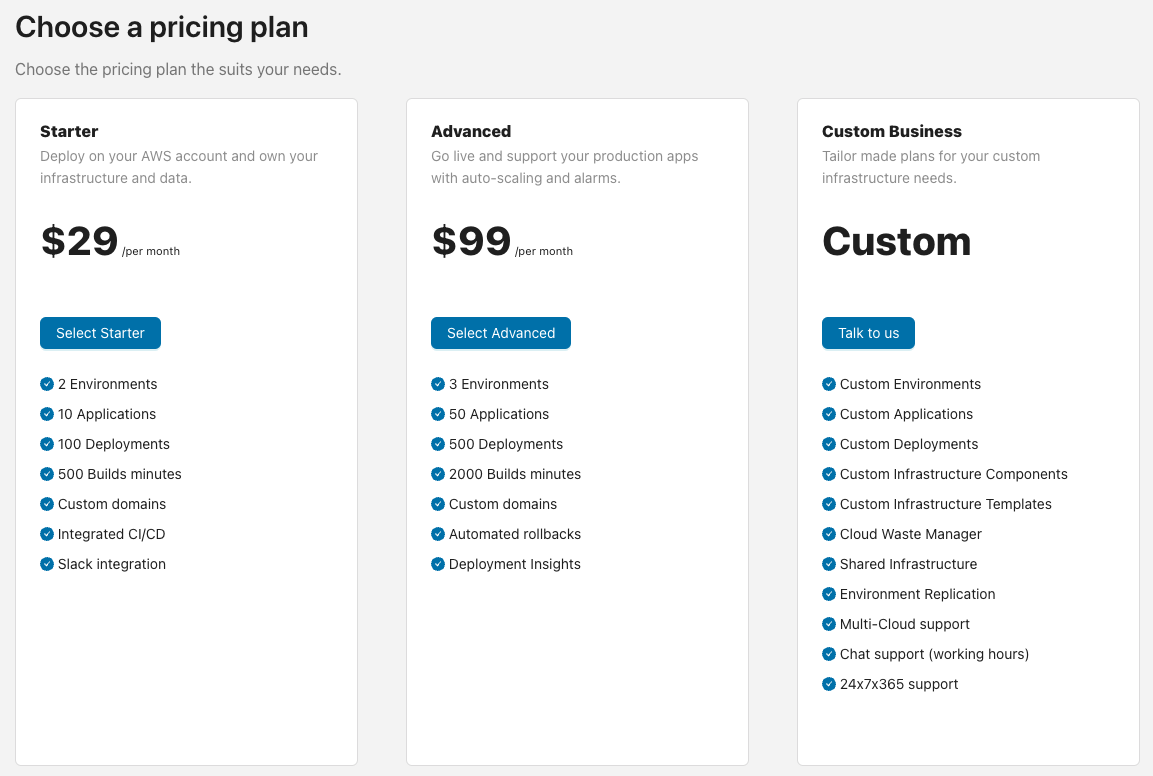
Microtica's self-service plans differ by the number of environments, access to ready-made infrastructure components and templates, build minutes, deployments, and extra features. For current plans, pricing, and promotions, see the Pricing page.
Overage protection on the Free plan
On the Free plan, you can deploy applications to your own AWS account, within fair-usage limits of 100 build minutes and 10 deployments per month.
Use this plan for development only. To run production environments, upgrade to a paid plan for the support you need.
Upgrade your plan
To change your current Microtica plan:
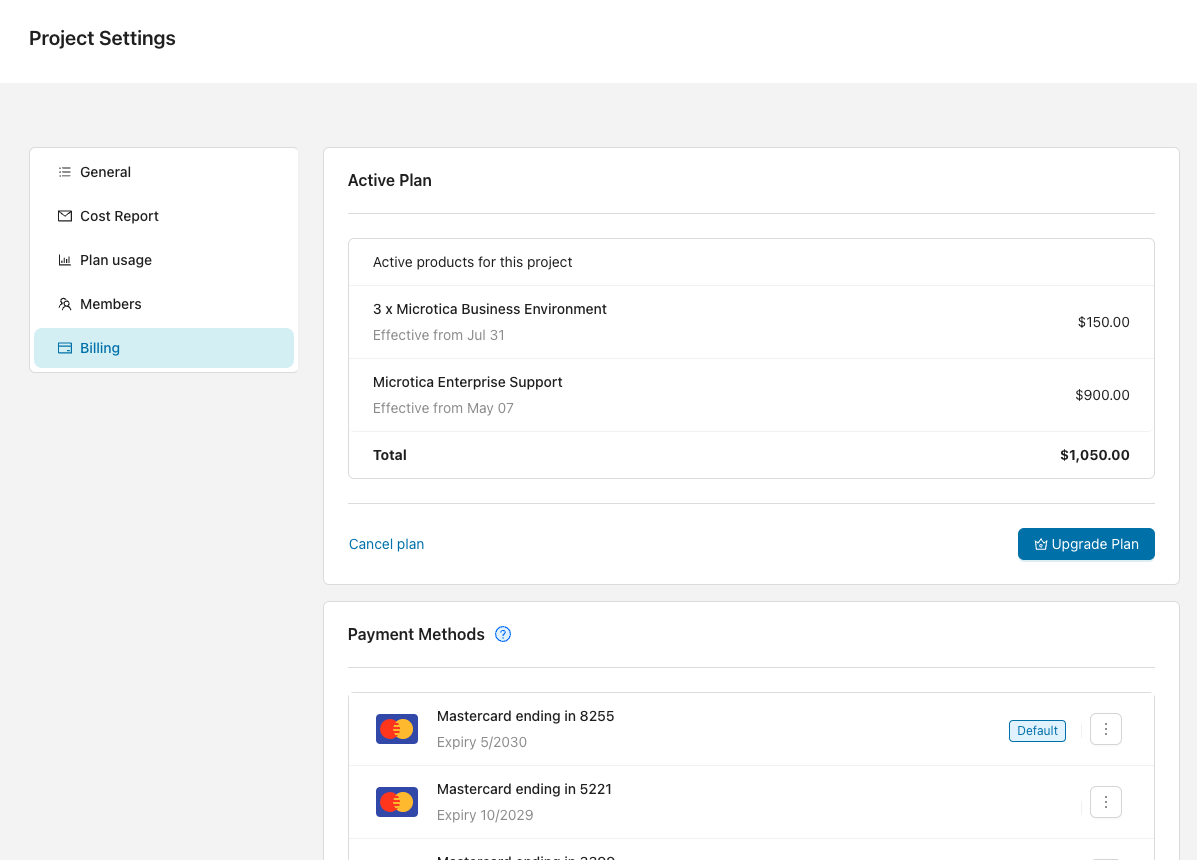
- Open your project settings by clicking Settings from the left menu.
- Select Billing on the left panel.
- Find your current active plan and click Upgrade plan.
- On the Pricing plans page, click Starter or Advanced for the plan you want. For a Custom plan, click Talk to us to set up a quick call with our team.
- After you Activate a self-service plan, a 7-day free trial is applied.
If a payment is missed, your account moves to the Free plan.
Add credit card details
To add or change the credit card on your account:
- Open your project settings by clicking Settings from the left menu.
- Select Billing on the left panel. Your credit card details appear in the Payment methods section.
- Click Add Payment Method, enter your credit card details, and click Save.
- If you have more than one payment method, set one of your cards as the Default.
Next steps
Project
A project is your central workspace in Microtica, where you organize environments, components, and applications and manage teammates and cloud settings.
Environments
Environments group the infrastructure components and applications that make up one running system in Microtica, each tied to a single cloud account.