

Automated saving schedules
Cut AWS costs with automated saving schedules in Microtica: start and stop EC2 and RDS instances on a schedule to save up to 60% in non-production environments.
Automated saving schedules help you optimize AWS costs by automating cost-saving actions on a schedule you define.
How saving schedules work
Automated saving schedules are start and stop schedules for your Amazon EC2 and Amazon RDS instances. They reduce operational costs by stopping resources when they're not in use and starting them when needed. The savings can be significant (up to 60%), especially in non-production environments.
Accessing saving schedules
Saving schedules are available in the cost dashboard view, but only if you have deployed resources in your AWS account. To access them:
- Log in to your Microtica account.
- Go to your Project and choose the environment connected to the AWS account you want to analyze.
- Click the Cost Dashboard tab.
- The first section is Automated Saving Schedules.
Configuring a sleeping schedule
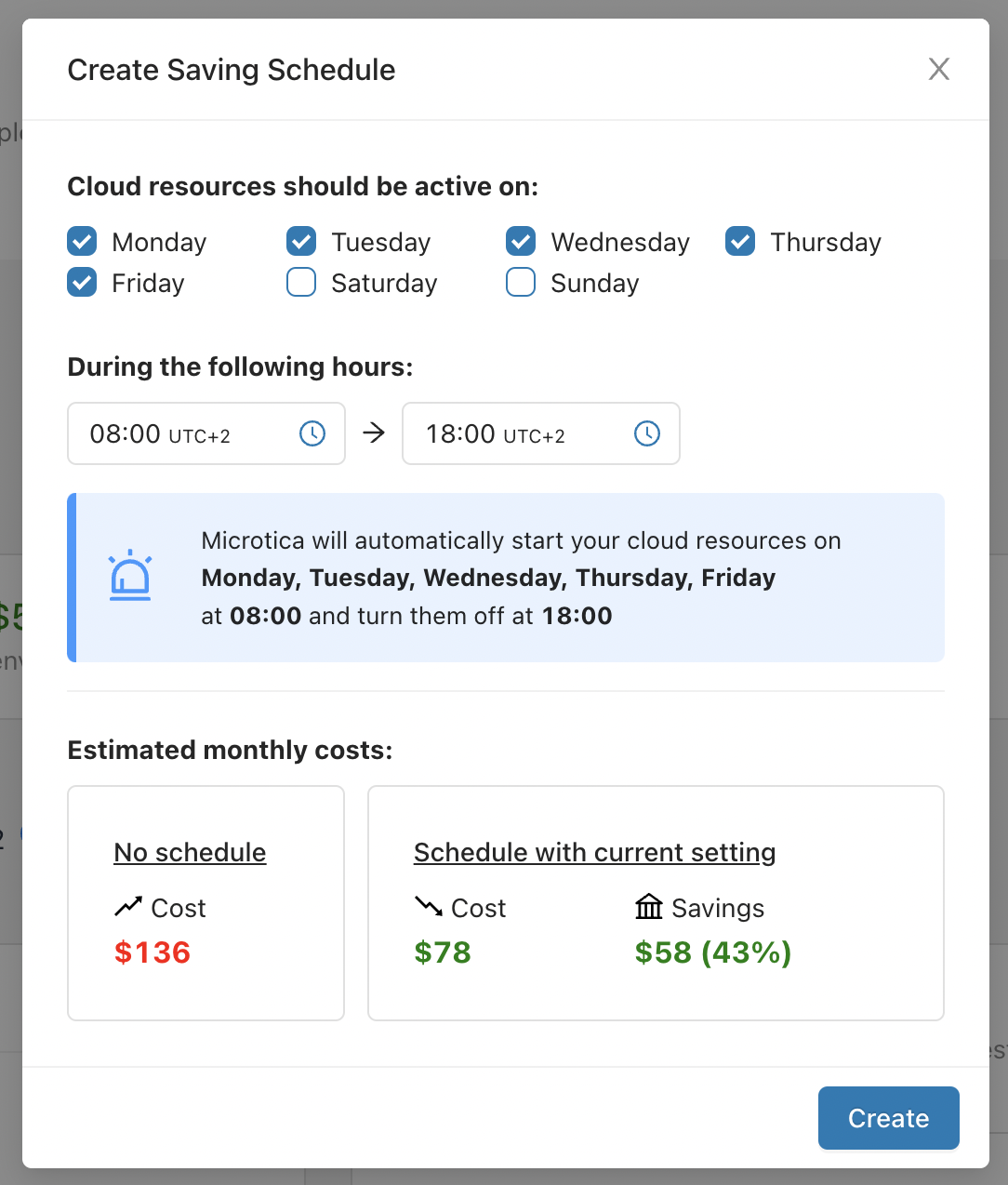
To define a sleeping schedule, set:
- Active days: Choose the days your cloud resources need to be active. The default is typically working days (Monday-Friday).
- Active hours: Define the time interval (in hours) when your resources need to be active. The default is typically working hours (8:00-18:00).
- Estimated costs & savings: Set the frequency and timing for these actions. Define intervals based on your goals — daily, weekly, or custom.
Usage guidelines
- Resource consideration: Choose the resource types and criteria for automated actions carefully. Avoid affecting critical resources.
- Balancing cost and performance: Balance cost reduction with resource performance. Test actions in non-production environments before applying them in production.
Monitoring and measuring savings
- Dashboard insights: Track the impact of saving schedules in the Microtica cost dashboard and cost reports. See how many resources were affected, which actions ran, and the resulting savings.
- Savings measurement: Measure effectiveness by tracking the reduction in AWS costs from the scheduled optimizations.
- Fine-tune schedules based on real usage patterns and monitoring feedback.
Notifications
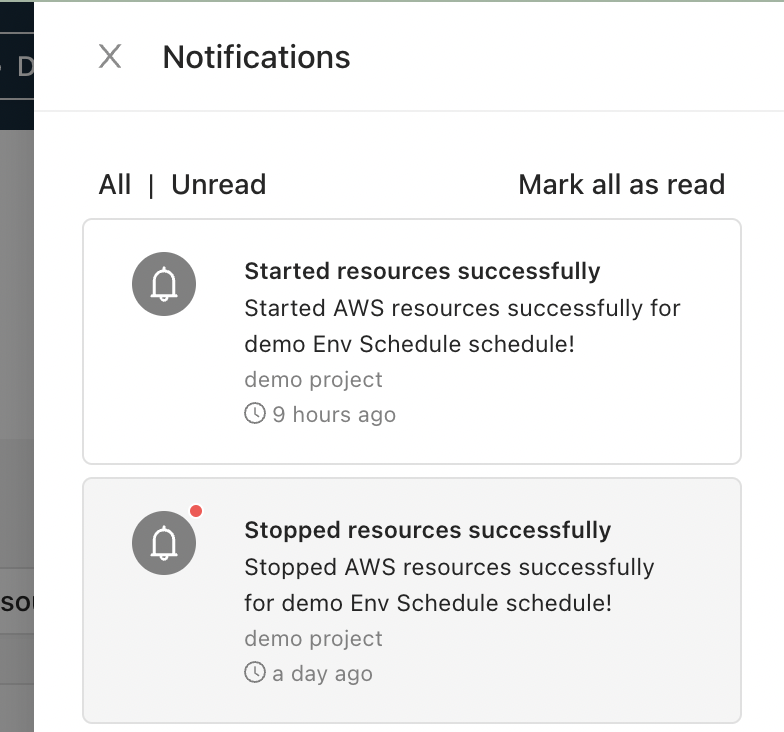
Automated saving schedules include notifications that keep you informed about the actions taken and their outcomes. Notifications are built into Microtica.
You receive a notification each time your resources are stopped and started by an active saving schedule.
Next steps
Cost dashboard
Visualize and analyze your AWS costs per environment with the Microtica cost dashboard: current spend, service distribution, forecasts, and year-to-date trends.
Microtica CLI
Install the Microtica CLI and drive your projects, environments, apps, pipelines, and logs from the terminal or an AI agent. Get set up in minutes.